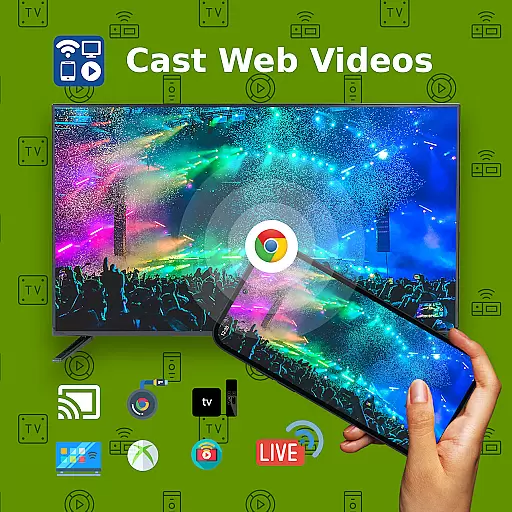
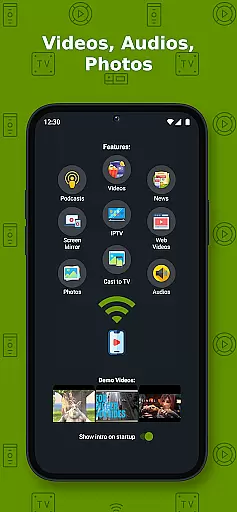
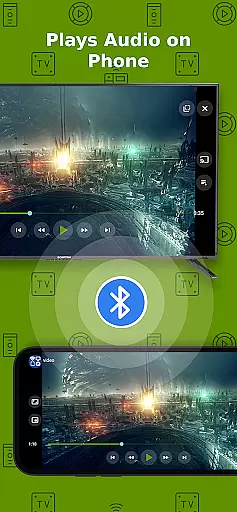
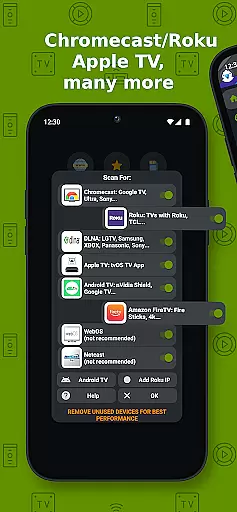
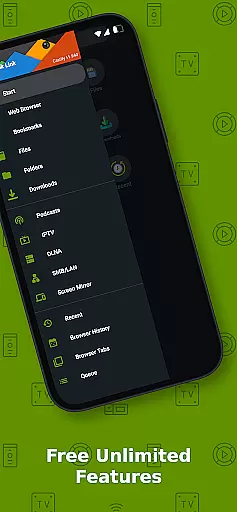
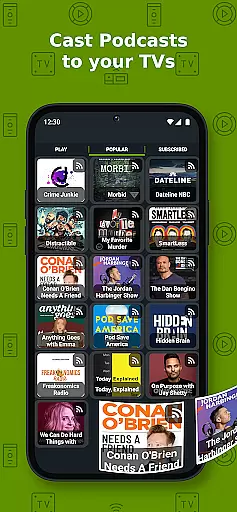
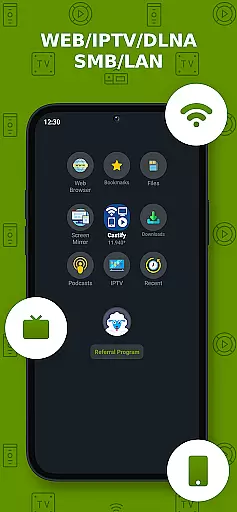
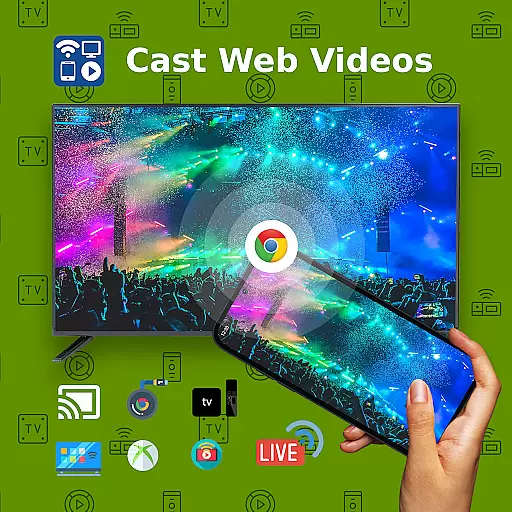
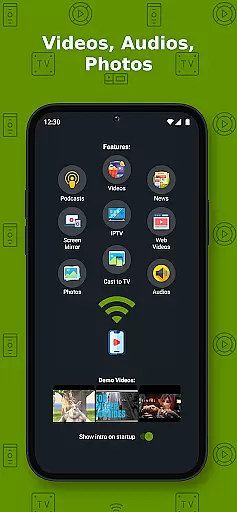
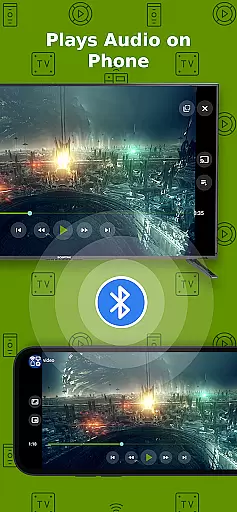
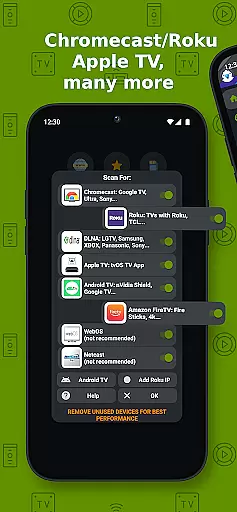
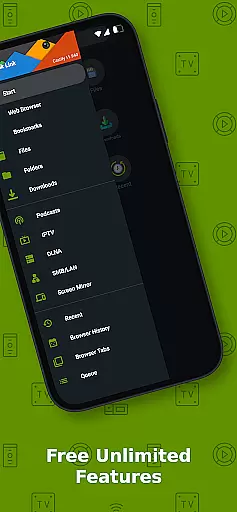
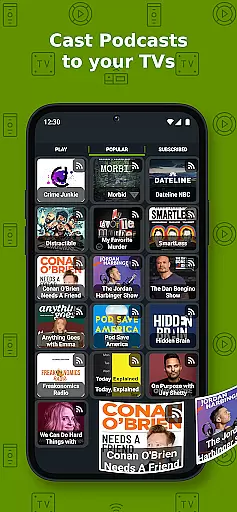
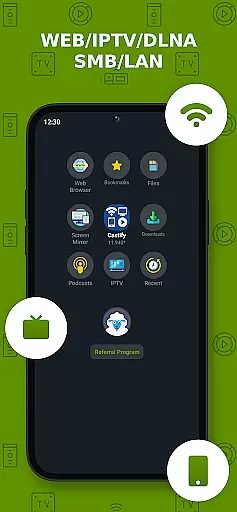
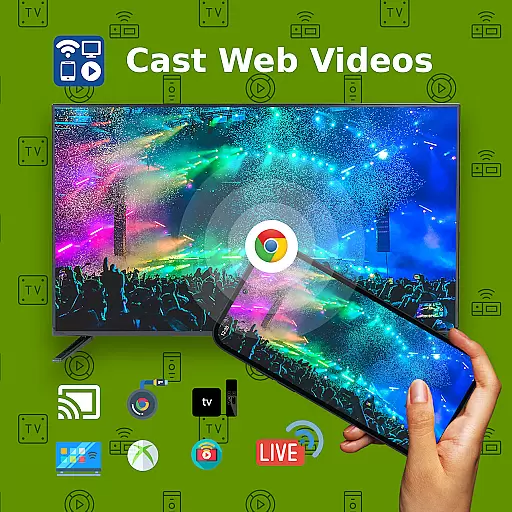
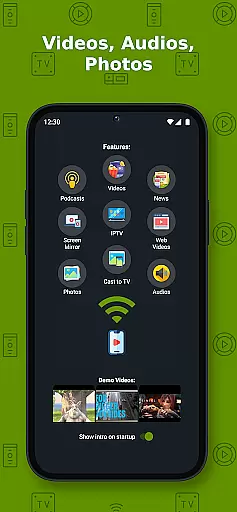
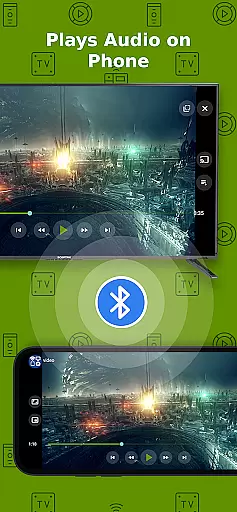
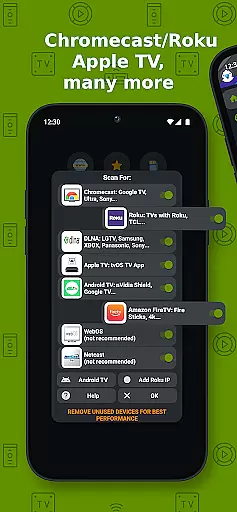
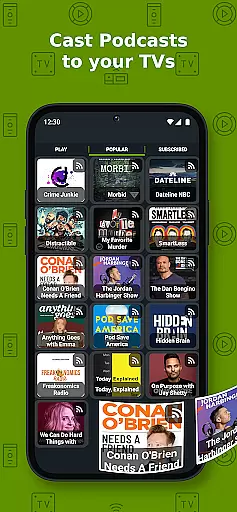
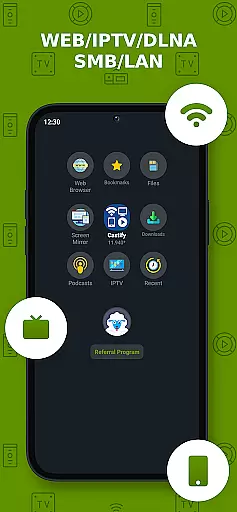
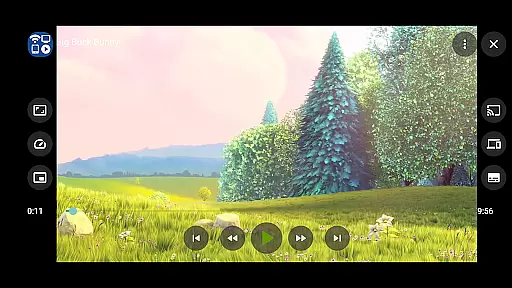
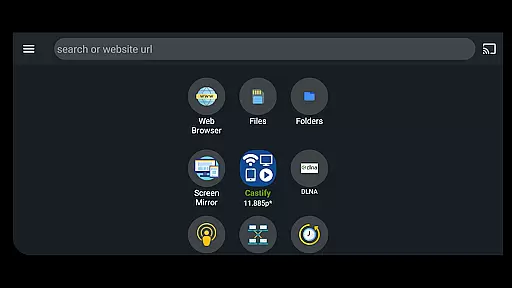
Cast to TV+ Chromecast Roku TV is a versatile streaming application that allows users to cast videos, music, photos, and other media content from their mobile devices to various streaming devices. The app supports a wide range of receivers including Chromecast, Roku, Fire TV, DLNA-enabled Smart TVs, Xbox consoles, and even web browsers like Chrome and Firefox.
The core functionality includes seamless casting capabilities, AI-powered subtitle generation and translation, universal remote controls for multiple devices, and support for various media formats such as MP4, MKV, MP3, and JPG. With features like screen mirroring, IPTV support, and Picture-in-Picture (PiP), this app provides an all-encompassing solution for digital media streaming needs.
This application is particularly useful in home entertainment settings where users can stream content from their phones or local files directly to their smart TVs or streaming devices. Its ability to integrate with different platforms and provide advanced functionalities like subtitles makes it a valuable tool for enhancing the viewing experience.
Cast to TV+ Chromecast Roku TV stands out with its comprehensive feature set tailored for diverse streaming needs. One of its key strengths is the extensive device compatibility, supporting everything from Chromecast and Roku to DLNA-enabled Smart TVs and gaming consoles like Xbox. This ensures that users can connect to almost any modern streaming device without compatibility issues.
The app's innovative AI Subtitle Generate and Translate functions allow users to create and translate subtitles for any video, making content more accessible to non-native speakers or those with hearing impairments. Additionally, the Universal Remote Controls feature provides convenient management of various streaming devices through a single interface, eliminating the need for multiple physical remotes.
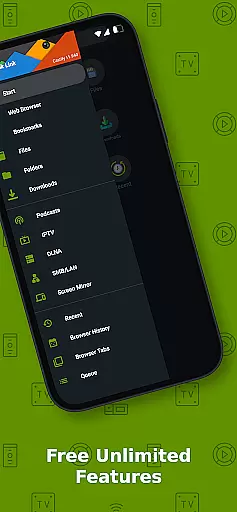
Other notable features include Screen Mirroring for newer Android devices, IPTV support with m3u playlists, and advanced website integration that automatically detects playable media on web pages. These features collectively enhance user convenience while maintaining high-quality streaming performance across different platforms and devices.
Video format compatibility is a crucial feature for any video player and editor application. Cast to TV+ Chromecast Roku TV supports an extensive range of formats, ensuring that users can enjoy their media without worrying about compatibility issues. The app supports MP4 movies, MKV files, MP3 music & podcasts, JPG, PNG images, HTML5 video, HLS Live Streaming, IPTV m3u file or URLs, and even 4K and HD where available.
The ability to handle such diverse formats means that whether you're streaming from local files on your phone to Chromecast, Roku, Xbox, DLNA, or casting web videos found online from websites, the experience remains seamless. This flexibility empowers users to cast and stream movies, videos, or music from a web browser to TV or from their IPTV providers without interruptions.
However, it's important to note that while Cast to TV+ Chromecast Roku TV does its best to support a wide array of formats, some proprietary video and movie formats will not cast to TV due to restrictions inherent in these formats themselves. Therefore, the compatibility and availability of the videos are dependent on the source websites and their chosen formats.
AI-powered editing features represent the cutting edge of video player and editor technology, providing users with tools that enhance their media consumption and sharing experiences. Cast to TV+ Chromecast Roku TV incorporates advanced AI functionalities like AI Subtitle Generate and AI Subtitle Translation. These features allow users to create subtitles for any given video and translate SRT subtitles into different languages, making content more accessible to a global audience.
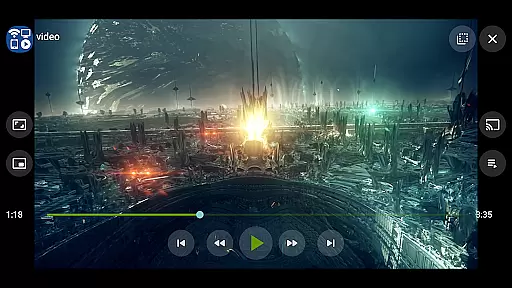
In addition to subtitle capabilities, the app offers Picture in Picture (PiP) mode, enabling multitasking while enjoying videos. Users can continue watching their favorite shows or tutorials in a small window while performing other tasks on their device. Such innovative features highlight the app's commitment to delivering a versatile and user-friendly interface.
While the app provides powerful AI-driven tools, it's essential to recognize that the effectiveness of these features may vary depending on the original video quality and format. Nonetheless, Cast to TV+ Chromecast Roku TV strives to offer robust solutions that cater to both casual viewers and tech-savvy individuals seeking advanced customization options.
User-friendly interface
Wide device compatibility
AI-powered subtitles
Universal remote control
Comprehensive format support
Limited AirPlay support
Some format restrictions
Occasional connectivity issues
Device-specific limitations
Requires stable Wi-Fi
Auto video maker with music & exclusive filters. Video editing made simple.
 4.50
4.50
Kodi media center, a free and open source cross-platform entertainment hub
3.60
HD Video player all format, HD Videos, Cast & Subtitle. No annoying ads.
4.60
You can play SWF format file!
2.50
Video Trimmer, Video to MP3 Converter. Extract music from video, Easy & Fast.
4.80
High-Quality USB Camera Viewer & HDMI Display
4.70
Turn your phone into a wireless camera!
4.20
VLC for Android is the best open source video and music player, fast and easy!
4.10
Photo editor & video maker with music and slideshows.
4.10
Tik & Story Saver-Download ALL social media videos, photos & reels no watermark.
4.80
GENRAL PRO - General Pro is the best video player that fully supports all formats.
4.70
Watch IPTV on your Android device
4.60
Video Downloader, Multiple Resolution Options, Video Player
4.50
Photo and Music Video Creator into Stunning Videos—Effortlessly
4.40
Browser for Fire TV to stream webvideos, online movies, livestreams in HD
4.40
Viddo: Generate Action Figure, AI Anime, AI kiss, AI hug Video from image & text
4.40
Make your own Animations, Video and Photo Edits, Visual Effects, and more!
4.00
Cast to Smart TV, Fire TV. Cast video, photo - Fast & Stable!
3.90
Powerful HD video player with support for all formats & subtitles.
4.2
VLC vs MX Player compared side-by-side: formats, subtitles, ads, privacy, and performance. Find out which free Android video player is right for you.



User Reviews