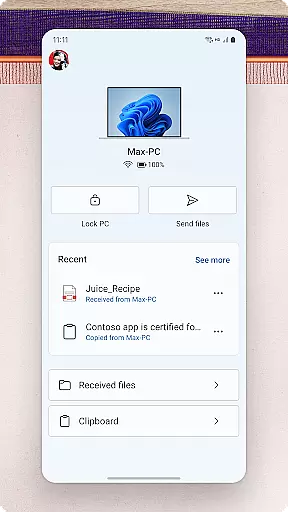
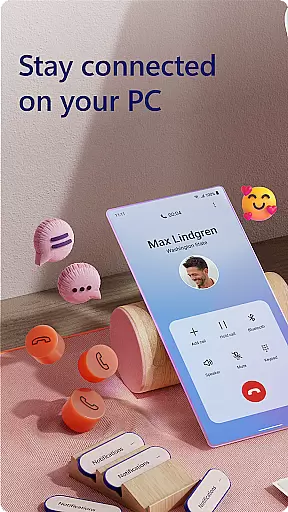
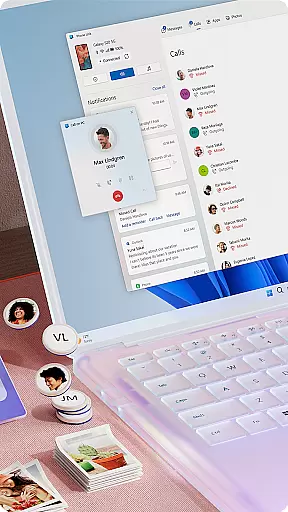
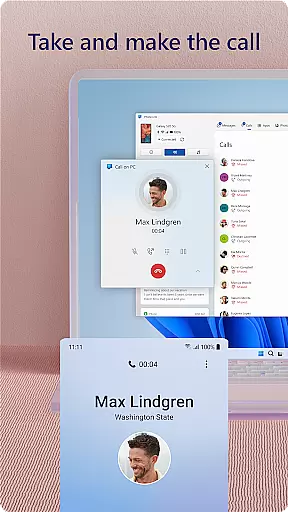
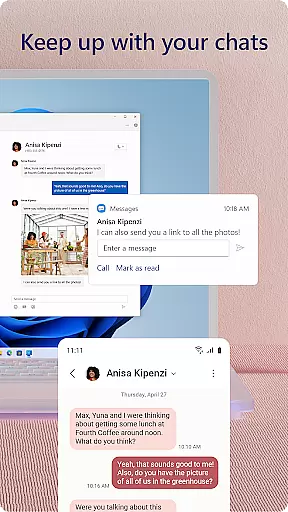
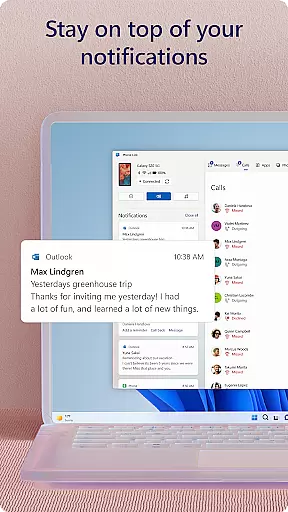
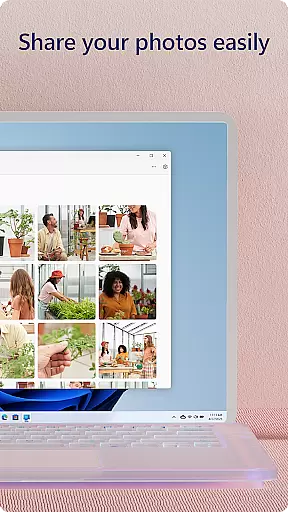
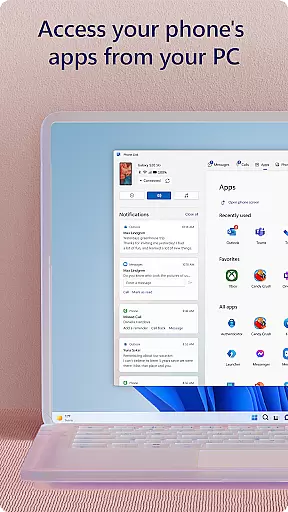
Link to Windows is a productivity-focused application that bridges the gap between your Android phone and Windows PC. This app allows users to seamlessly interact with their mobile devices directly from their computers. Key functionalities include making and receiving calls, managing notifications, accessing mobile apps, and handling text messages on the PC.
The app also supports advanced features like drag-and-drop file transfers, cross-device copy-paste, and instant photo access. These capabilities are further enhanced when used with select Microsoft Duo, Samsung, and HONOR phones, offering an integrated experience without needing additional downloads. With its accessibility service, Link to Windows ensures that even users with screen-reading tools can efficiently control their phone apps using PC interfaces.
For professionals who rely on both a phone and PC throughout their workday, this app streamlines workflows by centralizing communications and content sharing in one place. The ability to use the larger screen, keyboard, mouse, and touch capabilities of a PC makes interacting with your phone more efficient and comfortable.
Link to Windows offers a comprehensive suite of features designed to boost productivity. One of its standout capabilities is the ability to make and receive calls directly from a Windows PC, provided the PC has Bluetooth capability. This feature alone can significantly enhance communication efficiency for professionals who spend most of their day at a computer.
In addition to call management, the app provides robust notification controls, allowing users to manage alerts from their Android phone right on their PC. Users can also access their favorite mobile apps, read and reply to text messages, and perform sophisticated actions such as dragging files between devices and copying-pasting content across platforms. These features collectively ensure that users can maintain productivity without needing to switch between devices constantly.
Exclusive functionalities like Phone screen, cross-device copy-paste, and app integrations are available for compatible Microsoft Duo, Samsung, or HONOR devices. These features provide an enriched user experience by leveraging the strengths of both phone and PC interfaces. Furthermore, the accessibility service caters to users requiring screen-reading tools, enabling full phone control via Android keyboard navigation while providing spoken feedback through PC speakers.
Task management is a cornerstone of productivity applications, and Link to Windows excels in this area by integrating your Android phone's tasks directly into your PC environment. This seamless integration allows users to handle calls, text messages, notifications, and even mobile apps from their desktop.
The app achieves this through its Phone Link feature, which connects the user's Android device with their Windows PC. Once linked, users can make and receive calls, manage notifications, and access mobile apps without needing to interact physically with their phones. This functionality streamlines multitasking and keeps the user focused on their primary workspace.
For those who juggle multiple responsibilities, the ability to drag and drop files between devices and use the PCu2019s larger screen and input peripherals to control phone functions is invaluable. It not only saves time but also reduces the cognitive load associated with switching between devices.
Ultimately, Link to Windows enhances productivity by centralizing communication and task management on the user's PC, providing a more organized and efficient workflow that capitalizes on the strengths of both devices.
Cross-device synchronization is vital for maintaining continuity across different platforms, and Link to Windows offers reliable performance in this aspect. By connecting an Android phone with a Windows PC, it ensures that all essential phone functionalities are mirrored and accessible from the desktop environment.
This synchronization is powered by the Phone Link feature, which supports real-time updates of calls, messages, and notifications. Users can instantly reply to texts or manage their phone's notifications from their PC, ensuring they never miss important updates. The immediacy of these interactions provides a fluid experience that feels natural and intuitive.
Moreover, Link to Windows supports advanced features like cross-device copy and paste, file drag-and-drop, and phone screen mirroring when used with compatible devices. These capabilities enhance the sense of having a unified system where data flows seamlessly between the phone and PC.
By delivering consistent and dependable synchronization, Link to Windows empowers users to maintain productivity and connectivity regardless of the device they are using at any given moment. This reliability fosters trust in the system, encouraging users to integrate it fully into their daily routines.
Seamless device integration
Efficient multitasking
Enhanced productivity
User-friendly interface
Advanced accessibility options
Limited to specific devices
Bluetooth required for calls
Some features need Android 11
RAM requirements can be high
Not all phones are compatible
Seamlessly integrate data and reports to build your presentation to impress
 4.80
4.80
When you Focus, so will your Bean in this cozy focus timer
4.30
Native client for Forgejo and Gitea
5.00
Professional calendar app for Google Calendar, MS Outlook & Exchange
4.20
Make apps & sites with natural language prompts
4.10
A beautiful digital clock with autostart and many other functions
4.70
The ultimate file manager for rooted devices. The original and still the best.
4.00
Secure your apps with lock screens, use custom themes and different features.
4.40
2026 USPS Alpha/Color coded calendar Sunday/Rotating day off schedules
4.1
Scan paperwork into PDF/JPG, generate your own e-signature and send fax or email
4.70
Direct Chat without saving contacts & Dual WA Account on Single Device
4.70
Okta MFA
4.70
Stay on top of your to-dos with Google Tasks, part of Google Workspace.
4.60
Translate text/voice/photos in 150+ languages. Offline & fast translator app.
4.50
Experience real multitasking on your Android!
4.00
Wake up & get tasks done! Add alarms & reminders on the Clock Launcher.
4.00
Create and edit presentations with Google Slides, part of Google Workspace.
4.00
Take control of your clipboard with Clipper!
3.90
AI Video AI Image Private LLM AI Browser Llama Gemma Ollama Connect LLM Studio
4.0


User Reviews